
How to Compress JPG Images Online in 3 Steps
Shrink heavy JPEG photographs and screenshots by up to 80% while preserving sharp optical quality:
- Select or Drop JPG Files: Click the upload area above to choose single or multiple
.jpgor.jpegimages from your computer or smartphone, or drag and drop files directly onto the browser canvas. - Choose Target Size or Adjust Quality: Select a preset byte limit (20KB, 50KB, 100KB, 200KB, or 500KB) or manually set the JPEG quality slider between 10% and 95%.
- Convert and Download: Click Convert All Files to execute the local canvas re-encoding in browser RAM. Download individual images or click Download All as ZIP to save the entire collection.
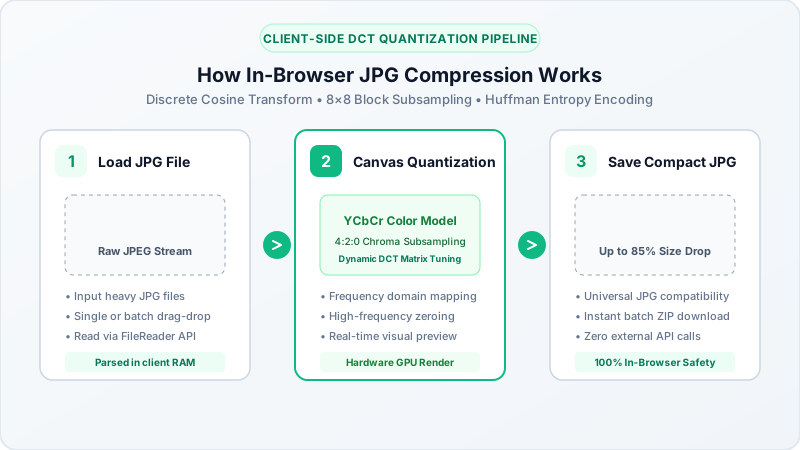
How JPEG Compression Works in Your Browser
JPEG uses the Discrete Cosine Transform (DCT) algorithm to compress visual information:
- Chrominance Subsampling: The human eye is significantly more sensitive to brightness (luminance) than to subtle color nuances (chrominance). JPEG compression compresses color channels more aggressively while preserving fine luminance edges.
- Quantization Matrices: When you select an 80% to 90% quality setting, high-frequency spatial noise is rounded off, significantly reducing byte count without softening visible photo details.
- Client-Side RAM Processing: Unlike traditional online compressors that upload your files to external cloud servers, BestConverter performs all image decoding, quantization, and encoding locally in your browser memory.
When to Use Target-Size Presets for JPG Files
Different platforms enforce strict byte ceilings on image uploads:
| Target Size Preset | Primary Application / Use Case | Portal Limit |
|---|---|---|
| Under 20KB | Candidate signatures, thumb impressions, exam portals | Max 20,480 bytes |
| Under 50KB | Passport photos, visa application forms, government IDs | Max 51,200 bytes |
| Under 100KB | Job portal avatars, resume headshots, university admissions | Max 102,400 bytes |
| Under 200KB | Web form attachments, identity card scans, PDF inclusions | Max 204,800 bytes |
| Under 500KB | Email attachments, website banners, blog post imagery | Balanced quality |
Preserving Visual Fidelity When Compressing JPGs
To ensure your compressed JPG photos look crisp and sharp:
- Use 85% Quality for General Photos: 85% provides the optimal balance, reducing file size by 60% to 75% while keeping optical artifacts invisible.
- Preserve Native Resolution: Our compressor maintains full pixel dimensions unless you explicitly choose to downsample width and height.
- Avoid Re-compressing Multiple Times: Re-saving an already compressed JPEG repeatedly introduces generational artifacts. Start with your highest resolution original photo for best results.